Projects is the management dashboard, the project page is the whole workspace, and the part-operations page carries the tools for the rate cleanup.
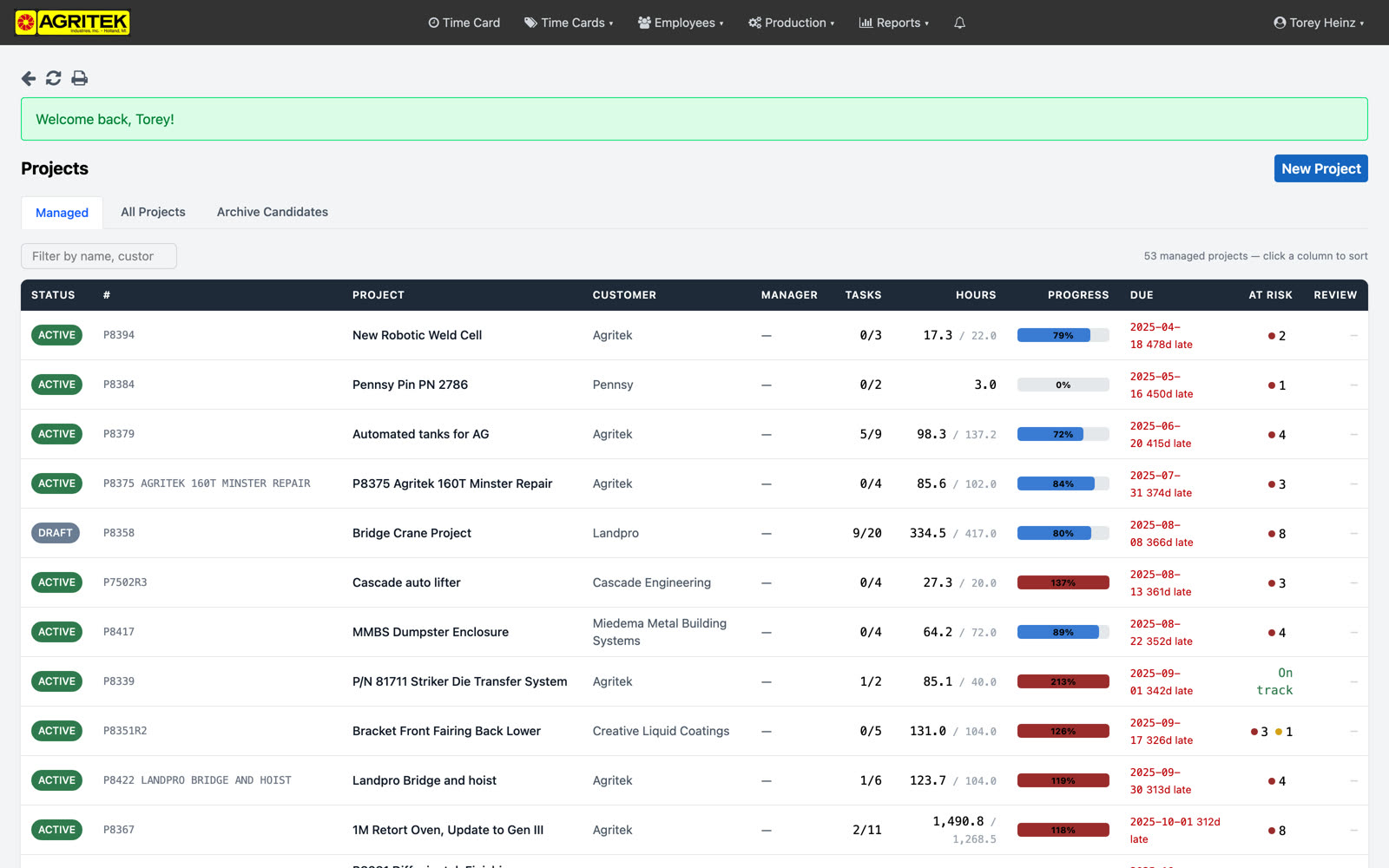
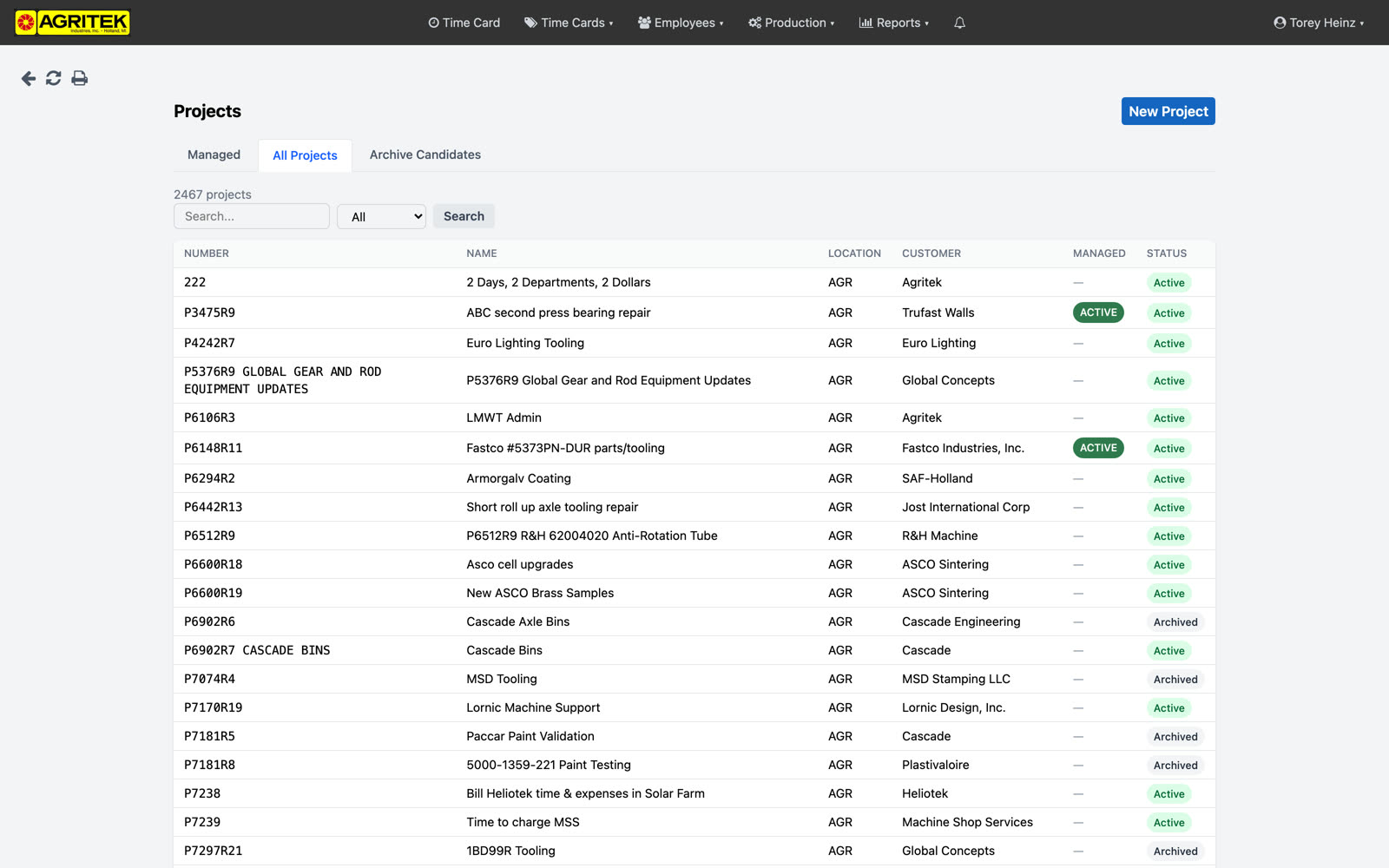
Projects is the management dashboard now. Managed is every project with a lifecycle status, with progress, hours, and cost rolled up. All Projects is everything, searchable, including archived. And Archive Candidates is active projects with no labor in a year; one click to archive each.
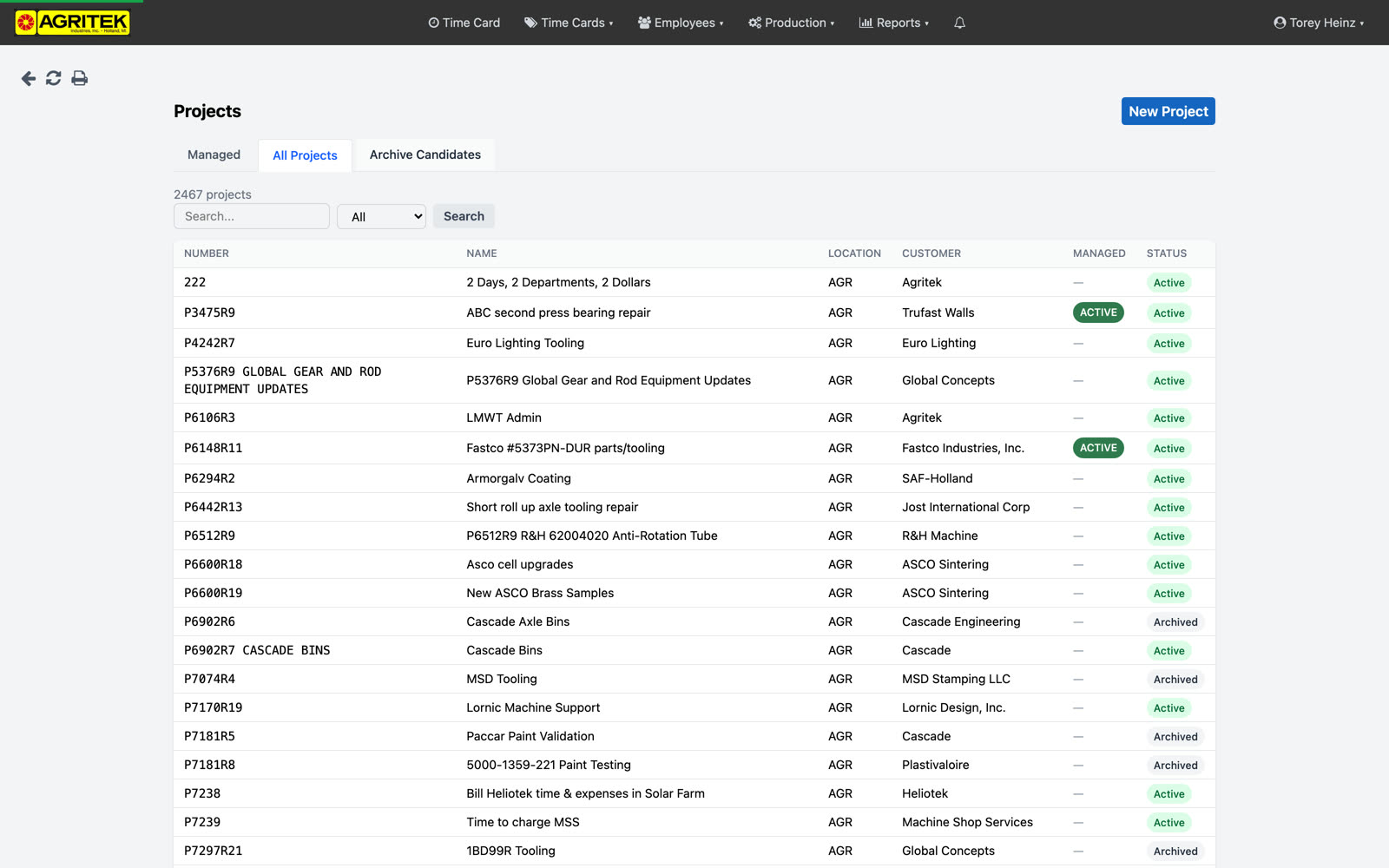
Archive Candidates lists active projects that were never managed and have no labor in 12 months, stalest first. Archiving hides nothing and deletes nothing; it just gets dead weight out of the working lists.
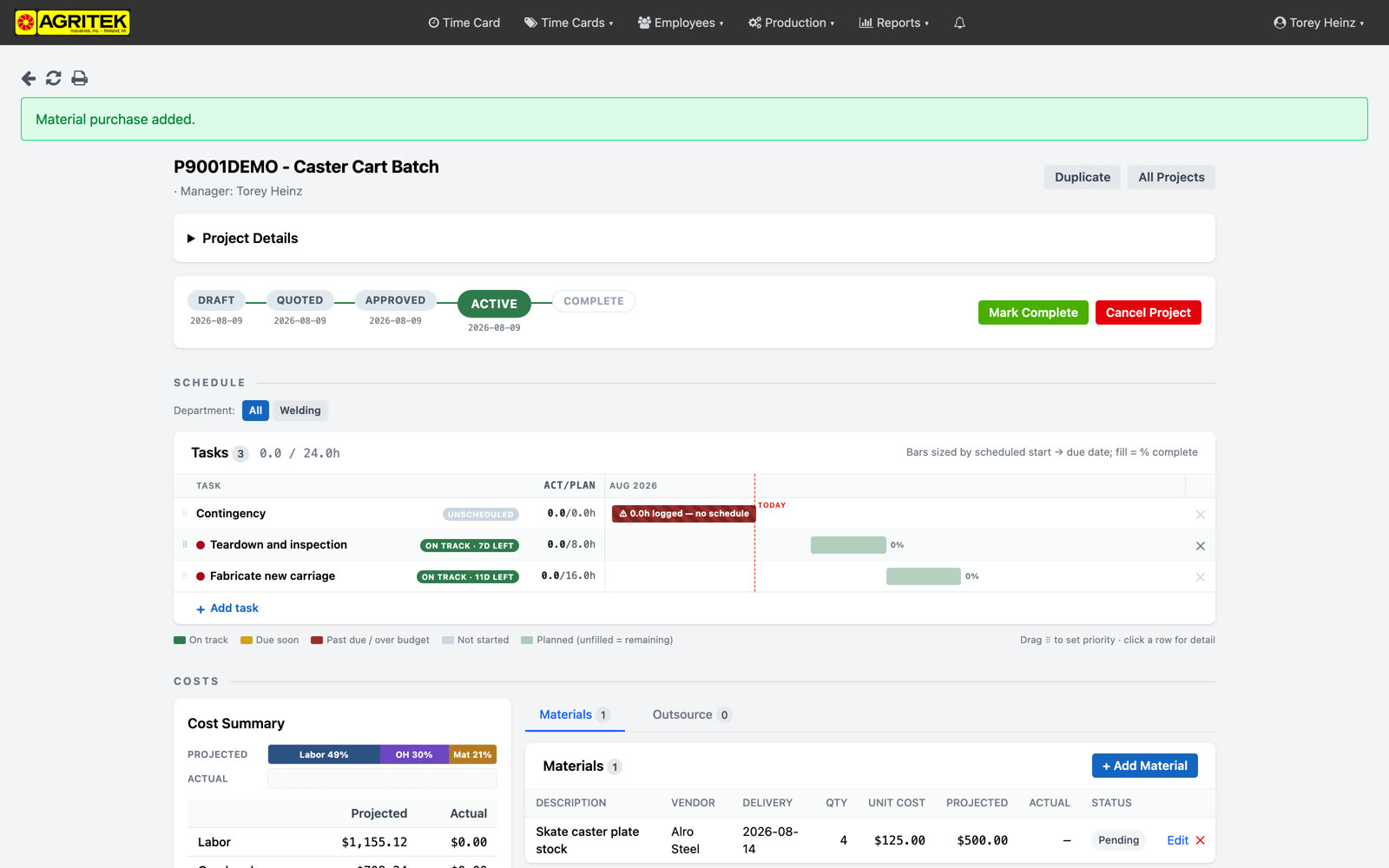
The project page is the whole workspace: details, the schedule board, materials, outsourcing, risk, and the activity timeline with the hours rollup. There's no separate edit page anymore; the form lives right here.
There's no separate edit page anymore. Project Details at the top expands into the form; everything else lives in sections down the page.
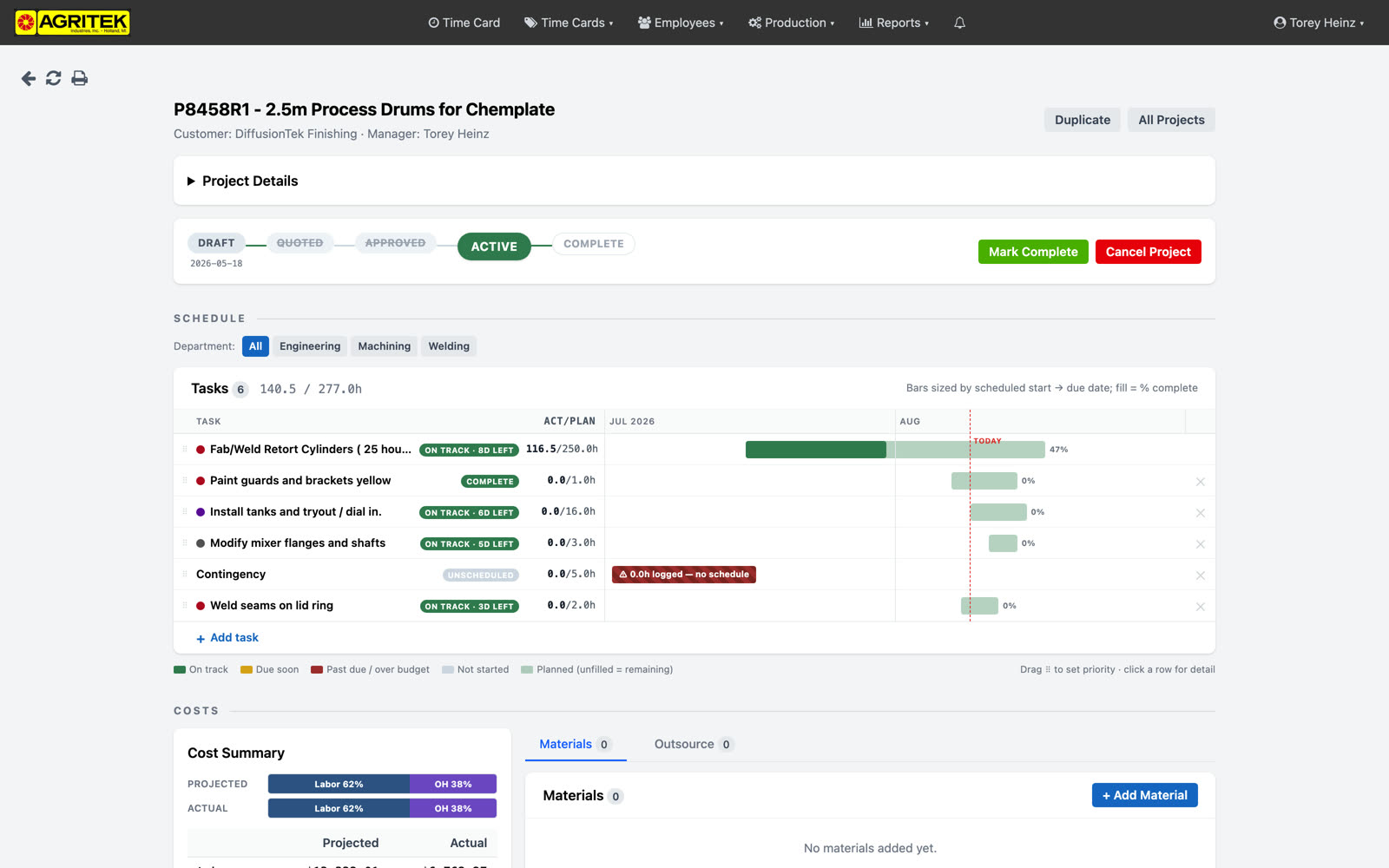
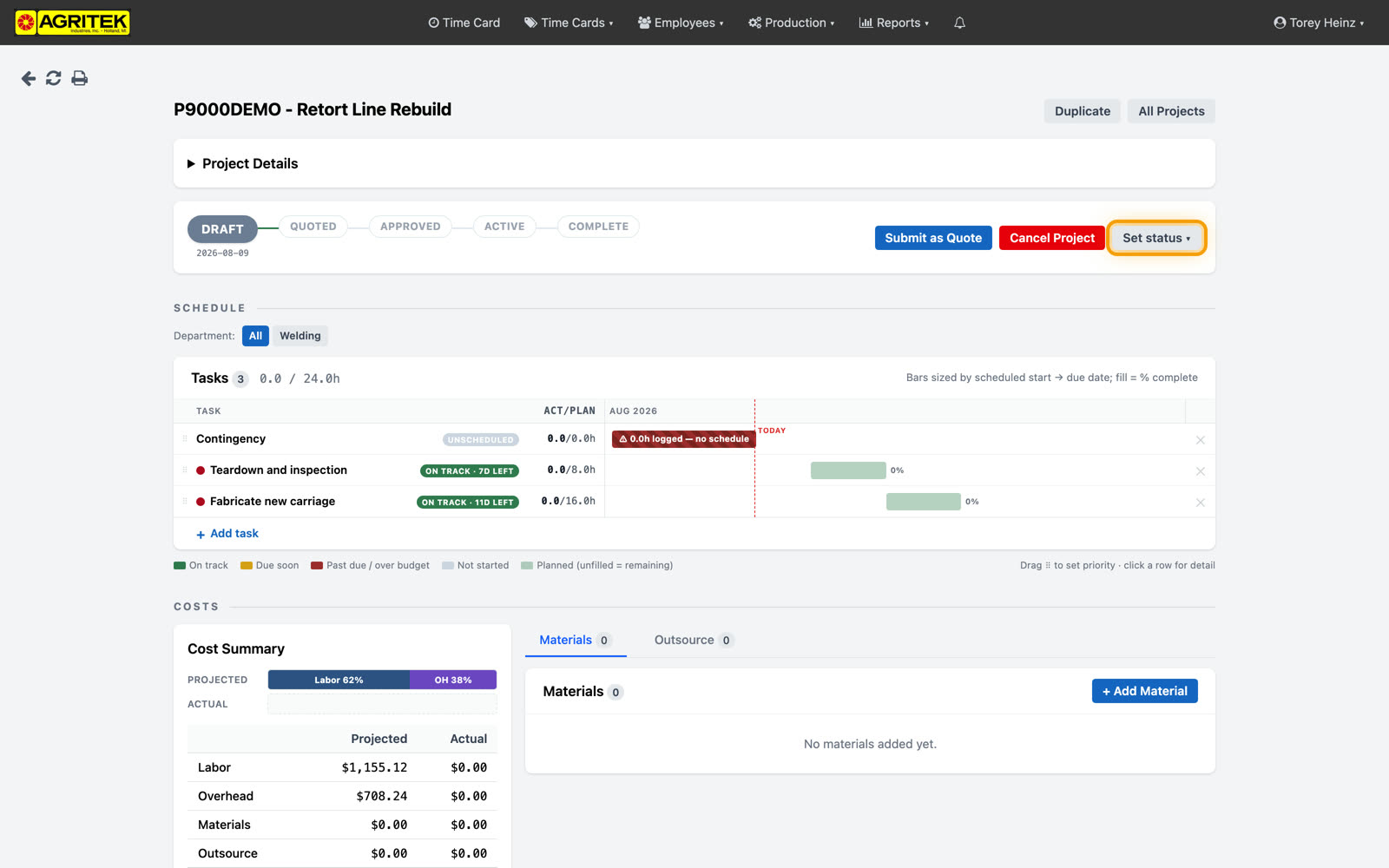
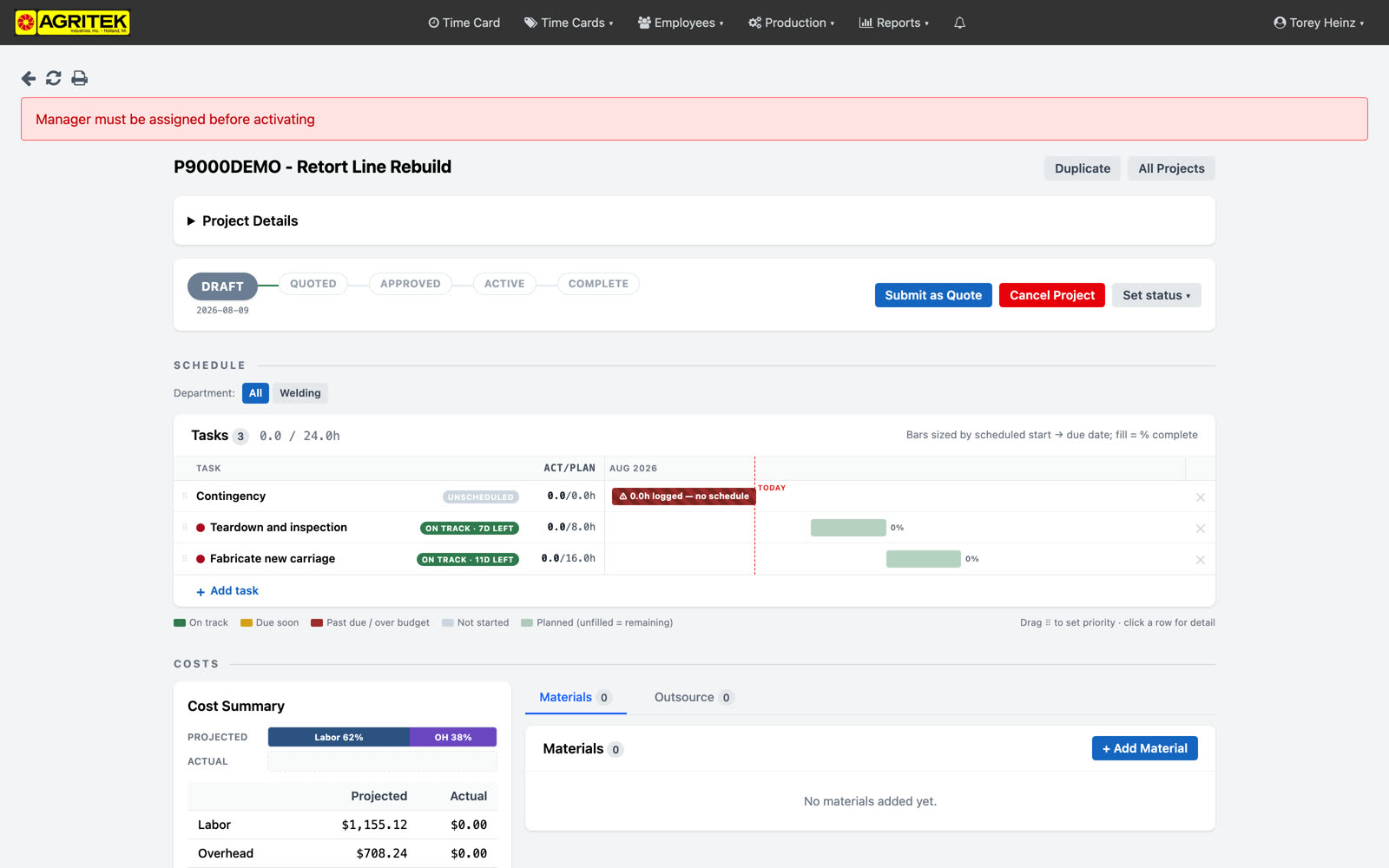
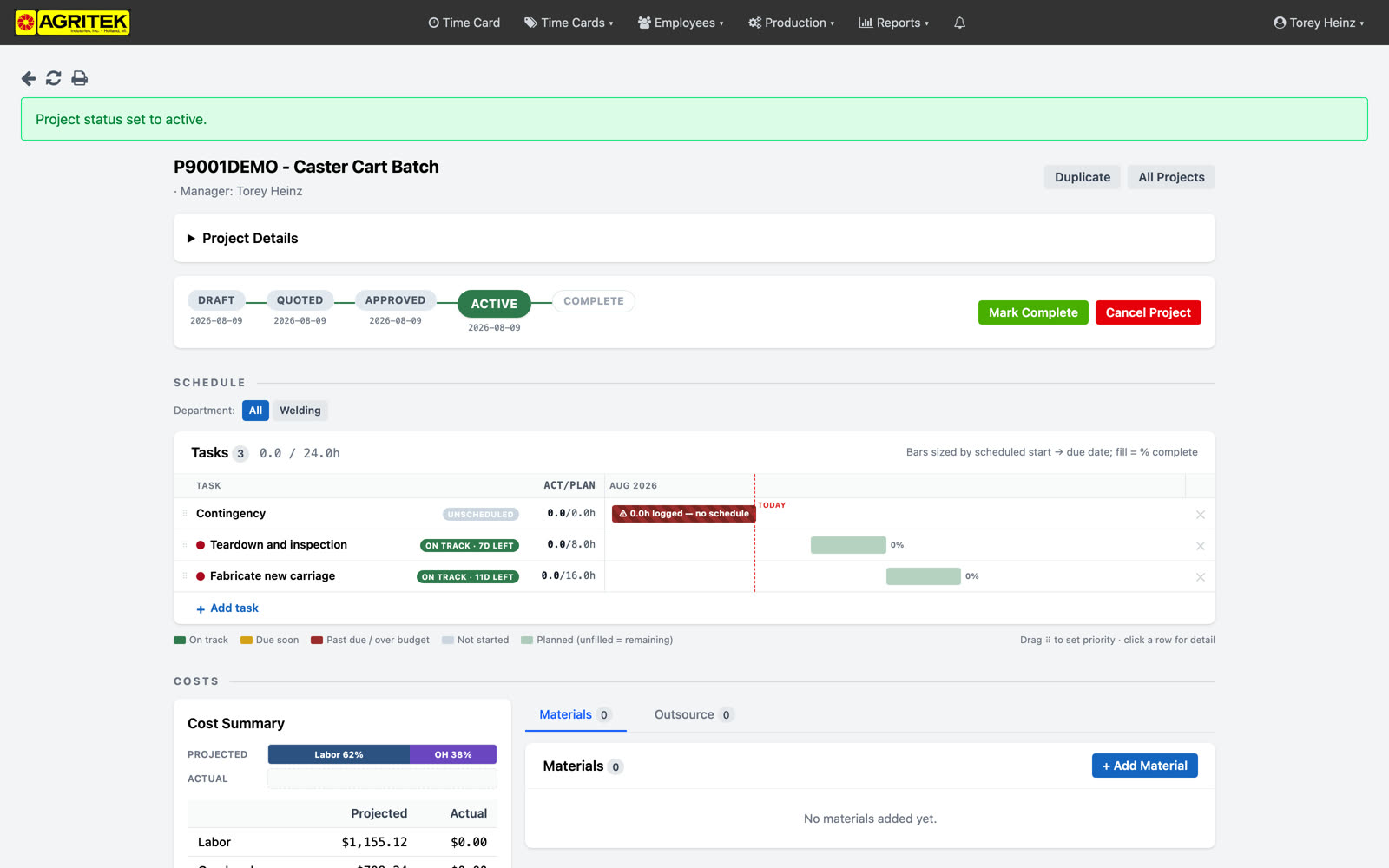
Projects have a lifecycle now: draft, quoted, approved, active, complete. The Set status control jumps straight to any of them. Two rules the system holds: a project can't go active without a manager, because notifications need somewhere to go. And the moment it enters a managed status, a contingency task is created automatically; unplanned time gets a home and a reason, instead of hiding inside a production op.
Statuses: draft, quoted, approved, active, complete, plus cancelled. A project cannot go active without a manager, because notifications need somewhere to go. Entering a managed status auto-creates a Contingency task; unplanned overrun time gets logged there with a reason (customer, supplier, or internal) instead of hiding inside a production op.
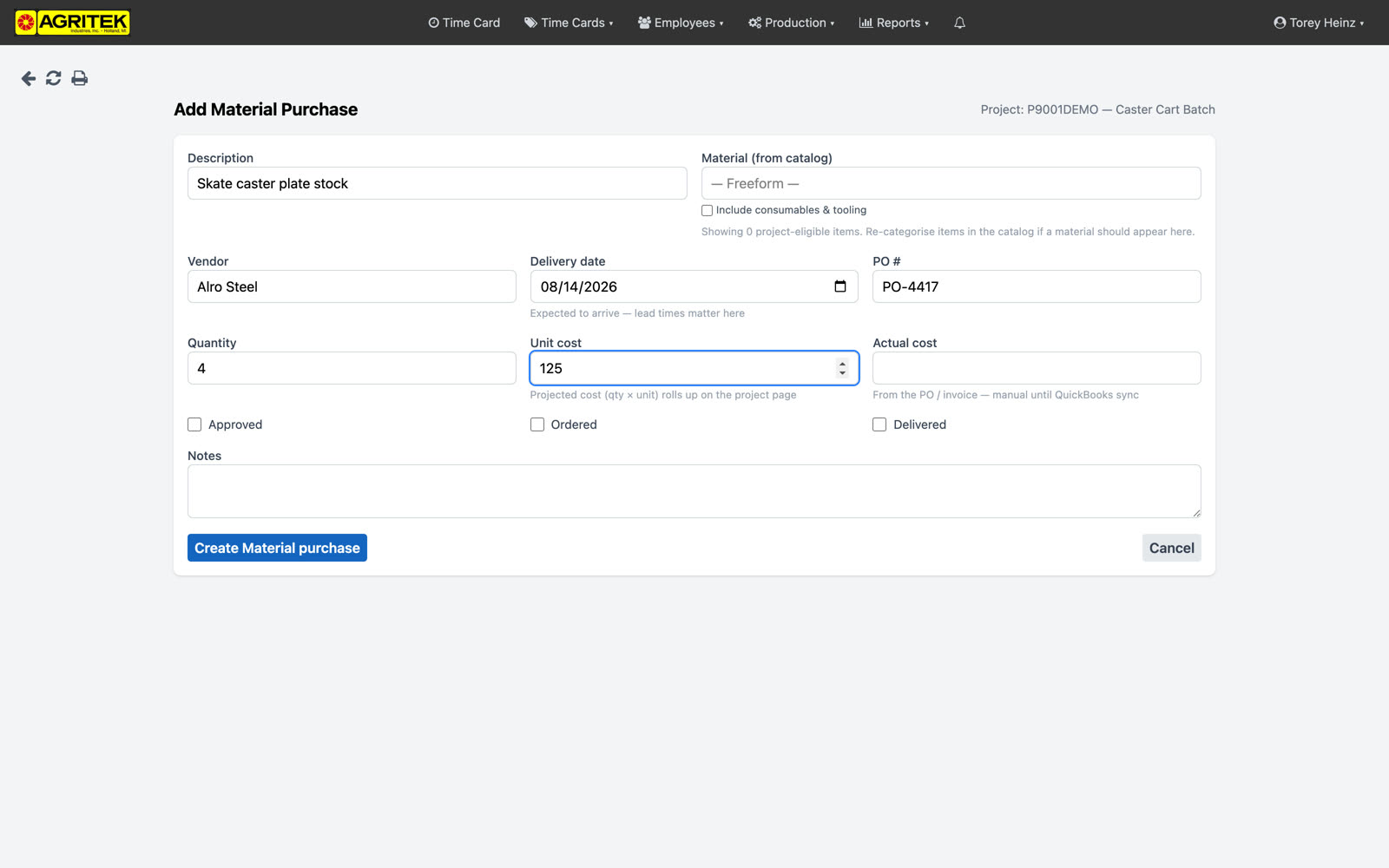
Materials: description, vendor, PO number, delivery date, quantity, and unit cost. Quantity times unit cost gives you the projected cost, which rolls up to the project. Approved, Ordered, Delivered chips track where each line stands. Outsourcing works the same way.
Projected cost derives from quantity times unit cost and rolls up to the project's cost summary. Approved, Ordered, and Delivered chips track state. Outsourced work gets the identical treatment on the Outsource tab.
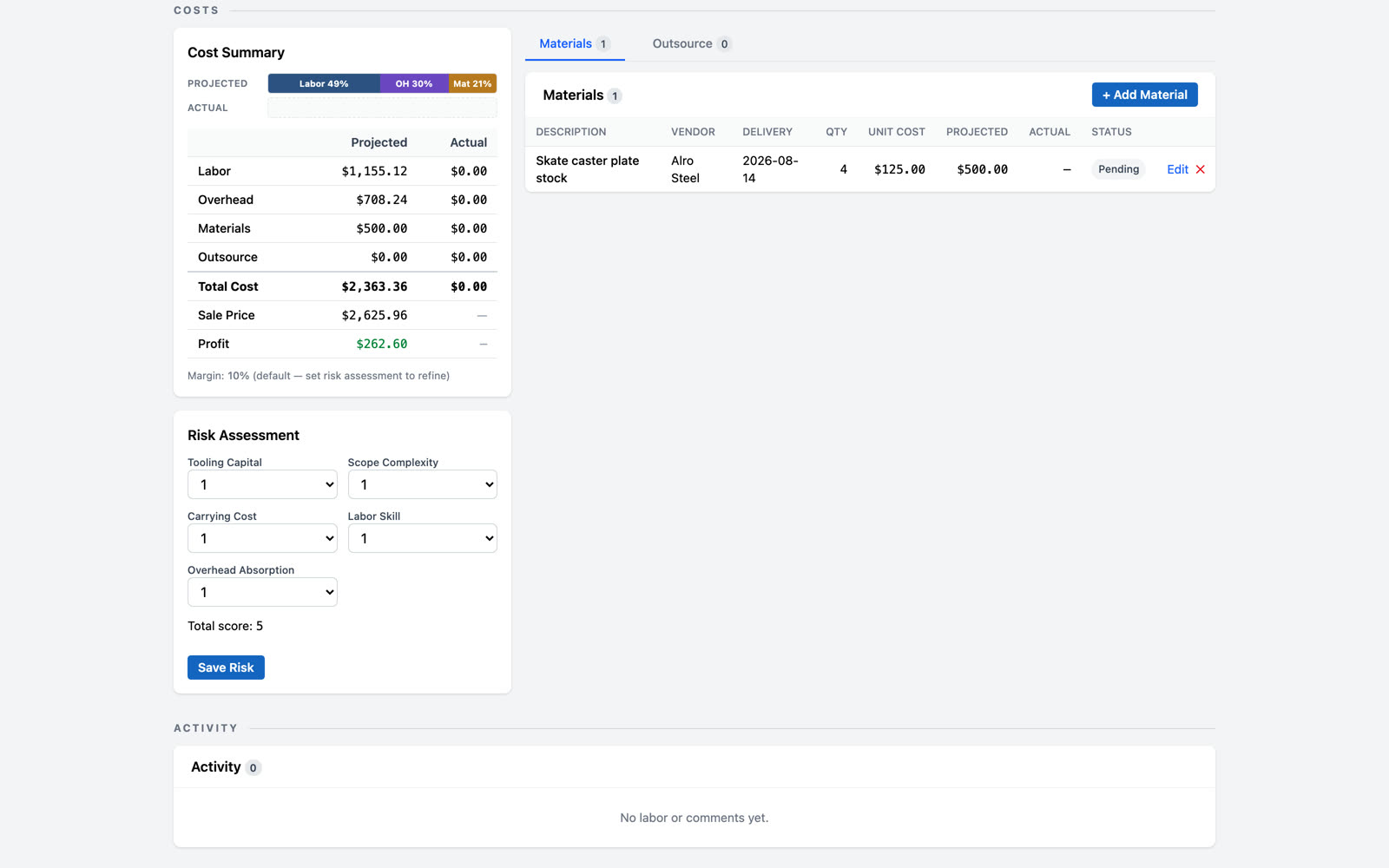
The risk grid: five factors, scored, and the score drives the quoted profit margin. Fill it at quote time and the margin math is on the record.
Five factors, each scored; the total drives the quoted profit margin.
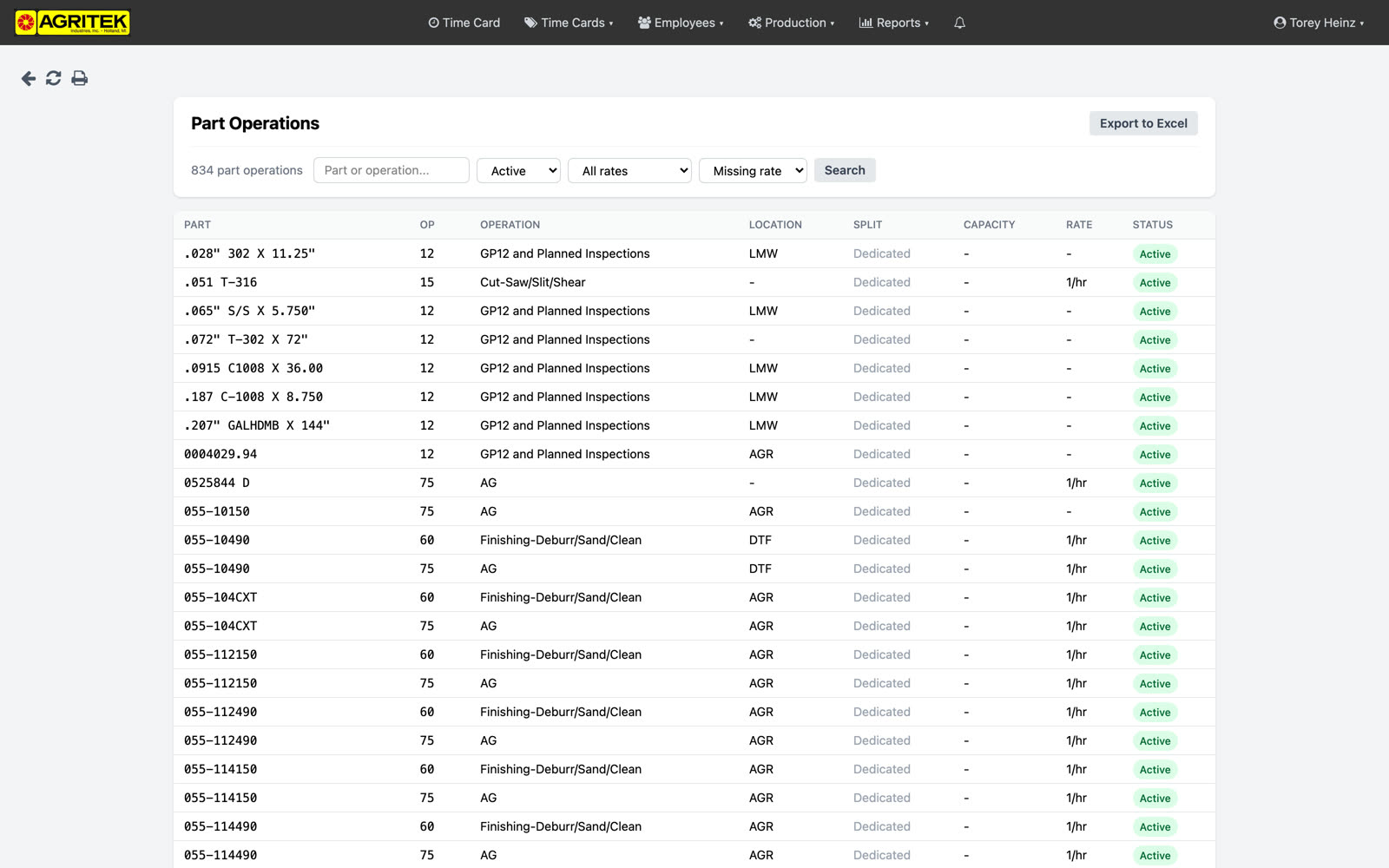
Part Operations has its own page now: search, filter by status, split versus dedicated, or missing rate. The missing-rate filter replaces the old PartOps without Rates page; it's the worklist for the rate walkthrough you're already doing.
The Missing rate filter replaces the old PartOps w/o Rates page. Combined with search and the split filter, it is the worklist for the rate walkthrough.
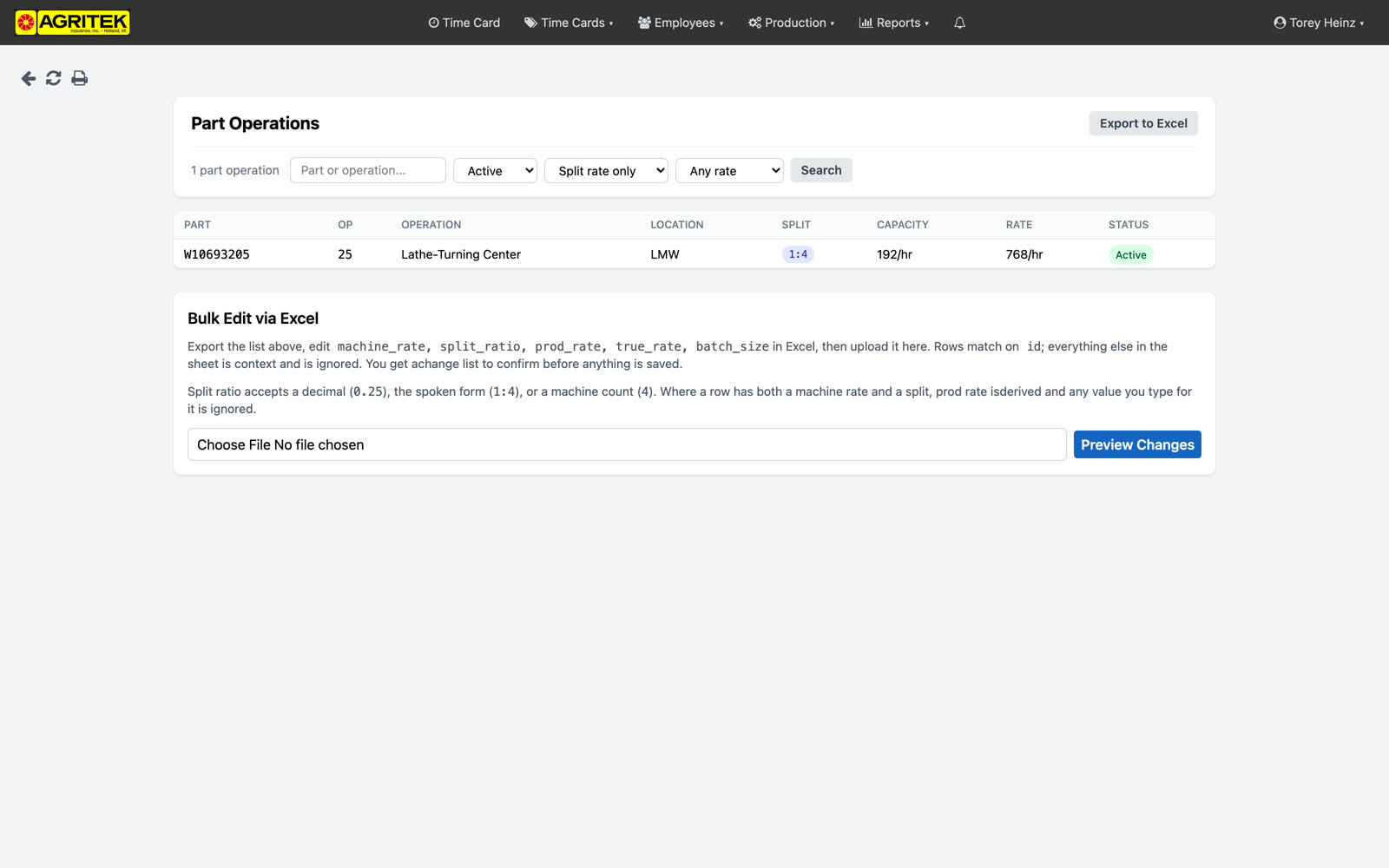
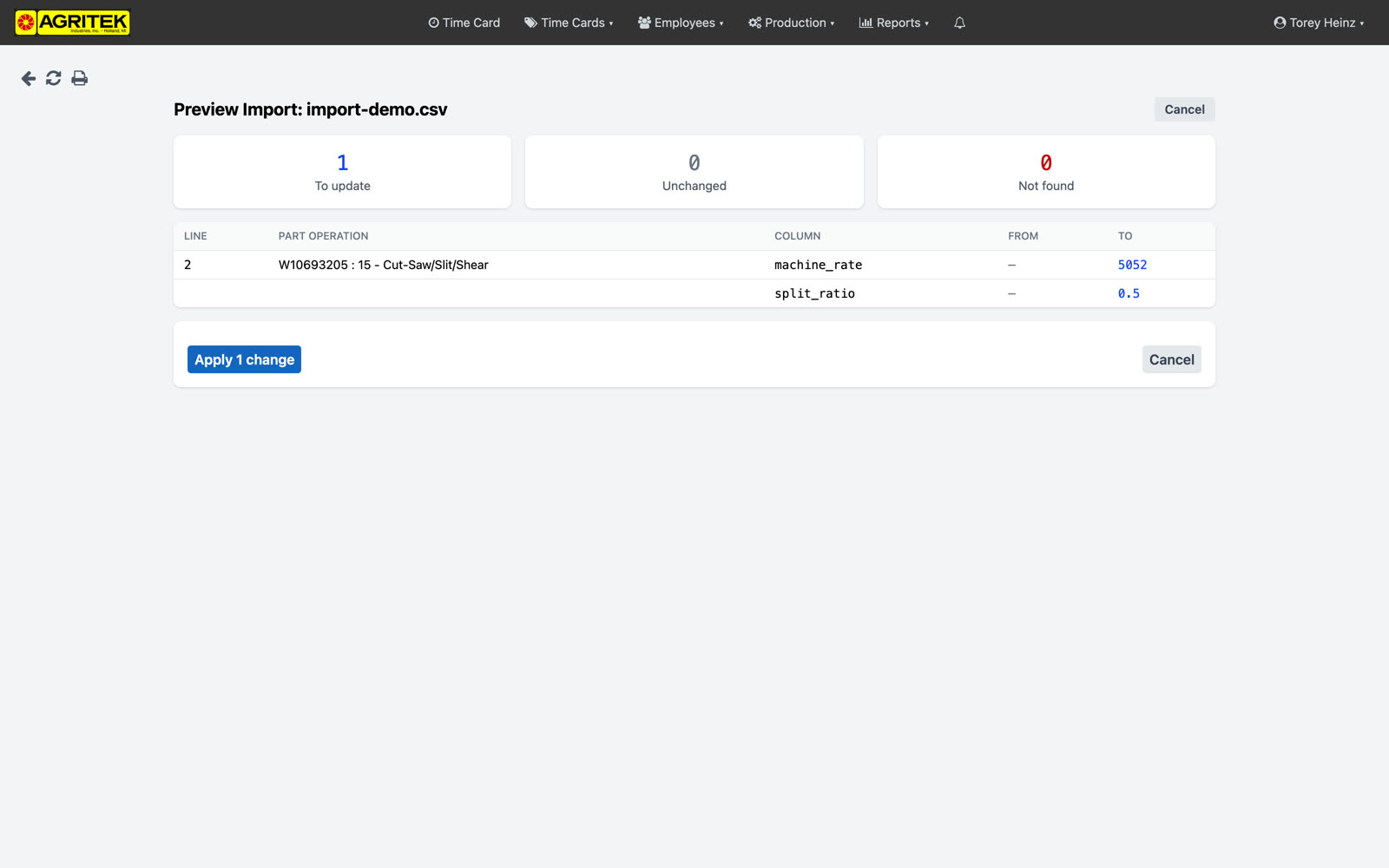
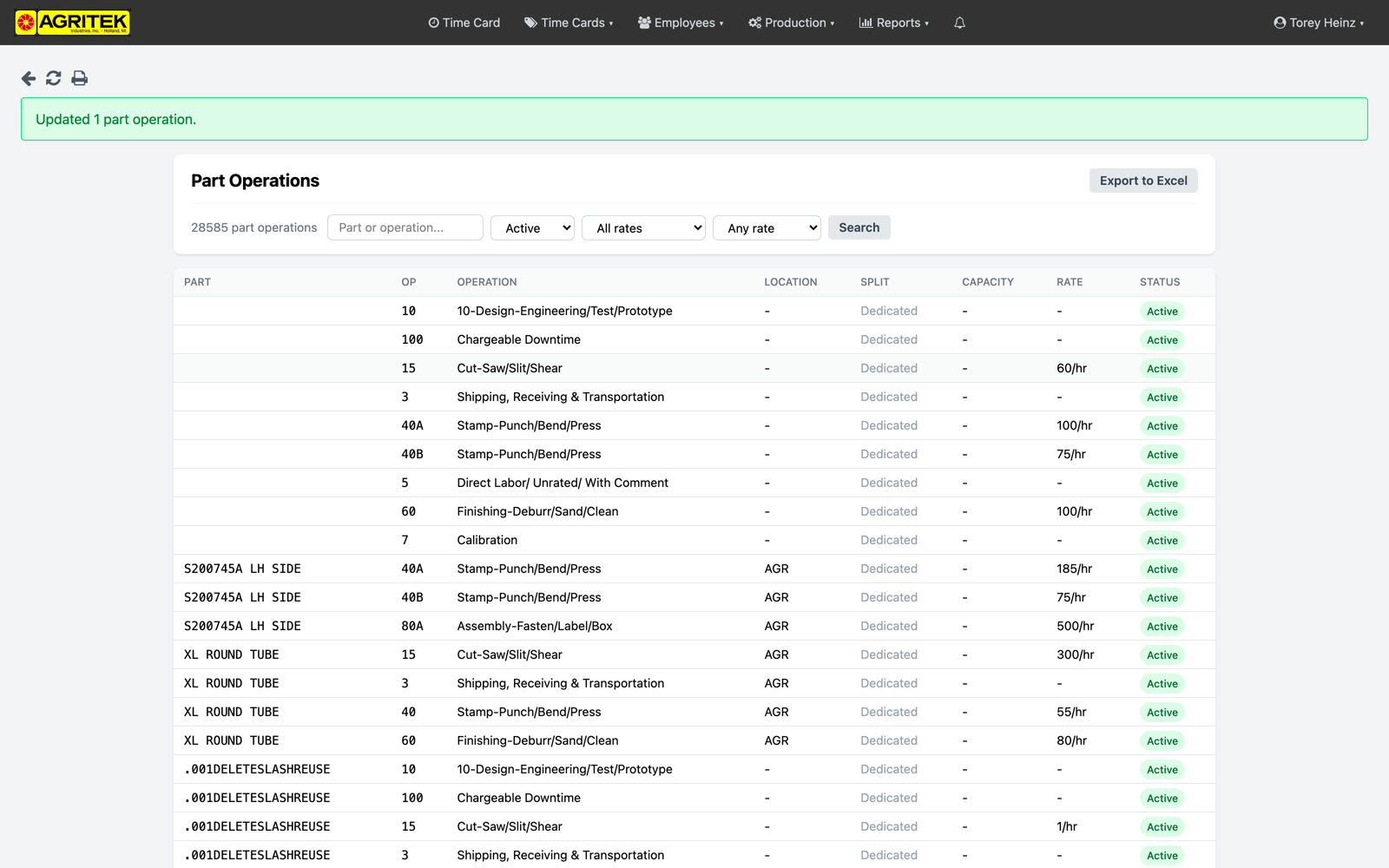
And the bulk editor for the rate cleanup. Export exactly the rows you filtered, edit machine rate, split ratio, and the rest in Excel, and import the file back. It shows you every change before anything is written; and it only ever applies what it showed you. It never creates or deletes rows. Split ratio takes a decimal, one-to-four, or just the machine count.
The import matches rows on id. It never creates or deletes operations, it shows every change before writing anything, and it only applies exactly what the preview showed; if someone edits a row while the preview sits open, that row is refused rather than overwritten. Split ratio accepts 0.25, 1:4, or a plain machine count like 4.
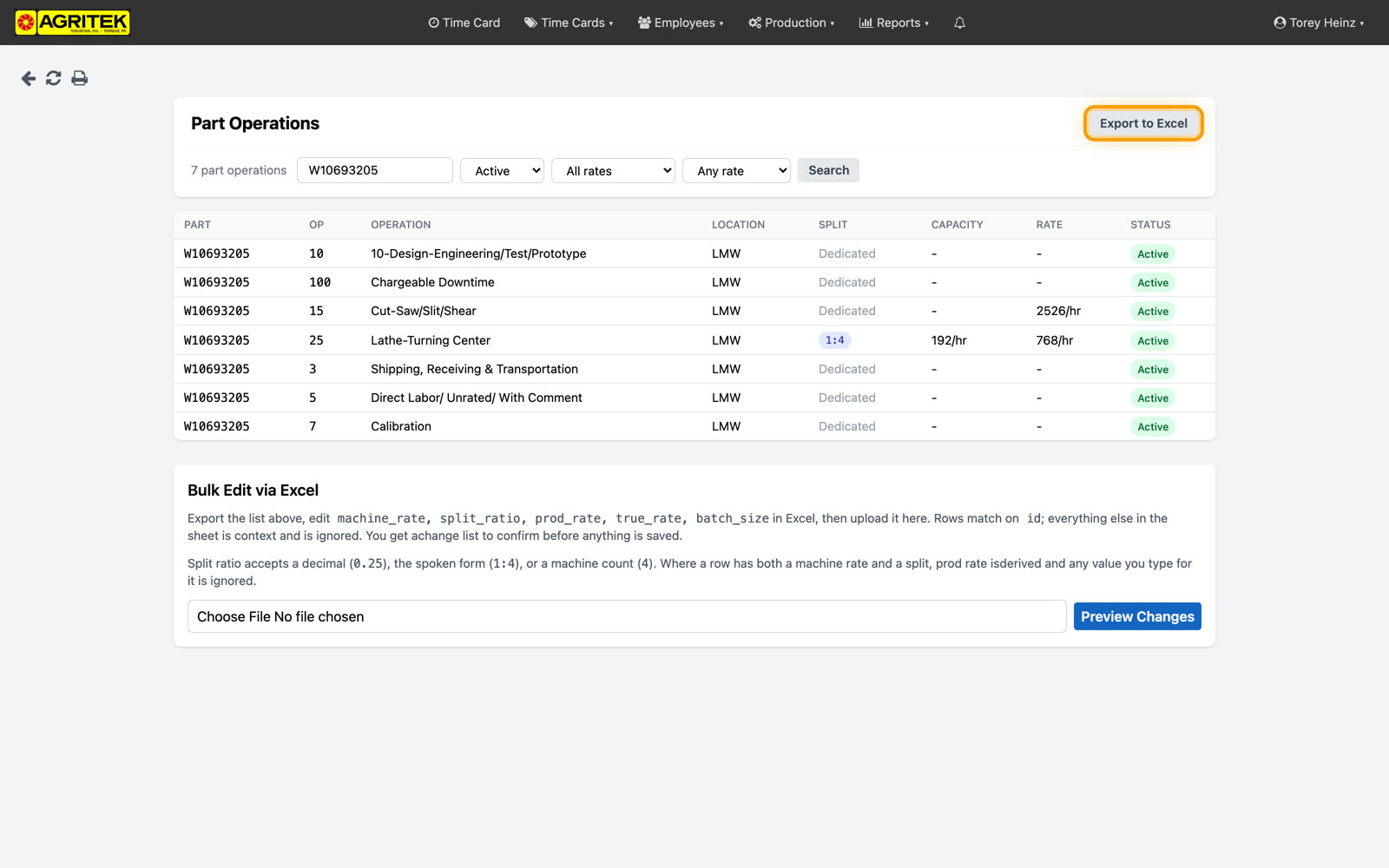
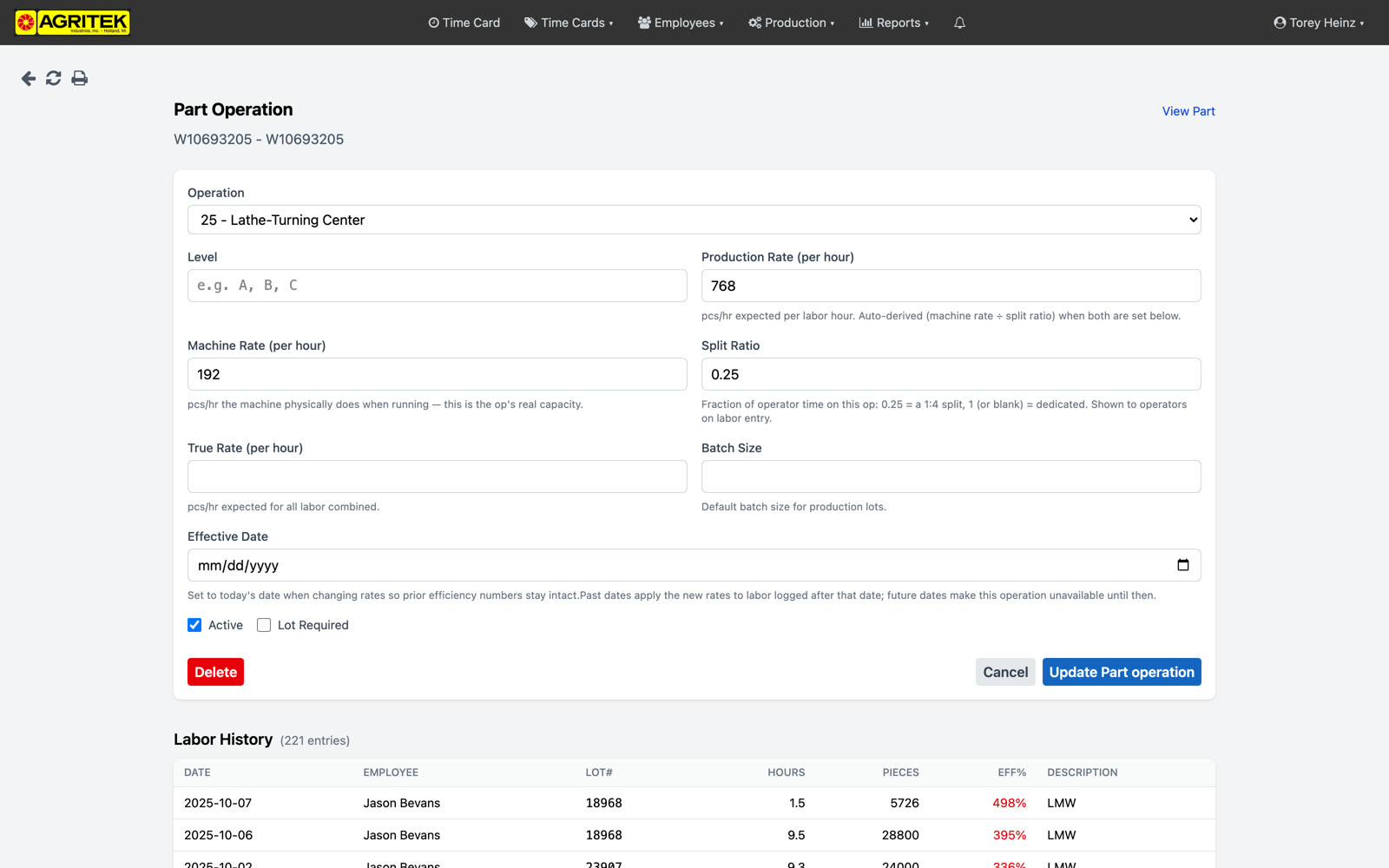
Machine rate and split ratio are the two real numbers now; the production rate derives from them. One hundred ninety-two an hour at a one-to-four split comes out to seven hundred sixty-eight; the same number as before, but now you can see where it comes from. Existing rates are untouched until you fill these in, and past entries keep the rates they were logged under.
Where both are present, production rate derives as machine rate divided by split ratio, and a hand-typed production rate is overwritten on save. Part ops without them keep their manual rates untouched.